Editor Menu Reference
Every command LoL Engine adds under the Unity Tools > LoL Engine menu, what it does, and when to use it.
Unity: 6000.0+ — for the current engine version see package.json or CHANGELOG.md
Overview
Installing LoL Engine adds a Tools > LoL Engine menu to the Unity Editor. The commands fall into three groups:
- Everyday tools you use while building a game — the Setup Wizard, config creators, and validators.
- Audio and Addressables helpers that prepare mixer and Addressable groups.
- Package-development tools used to build and toggle the bundled samples. Game projects rarely need these — samples ship pre-built.
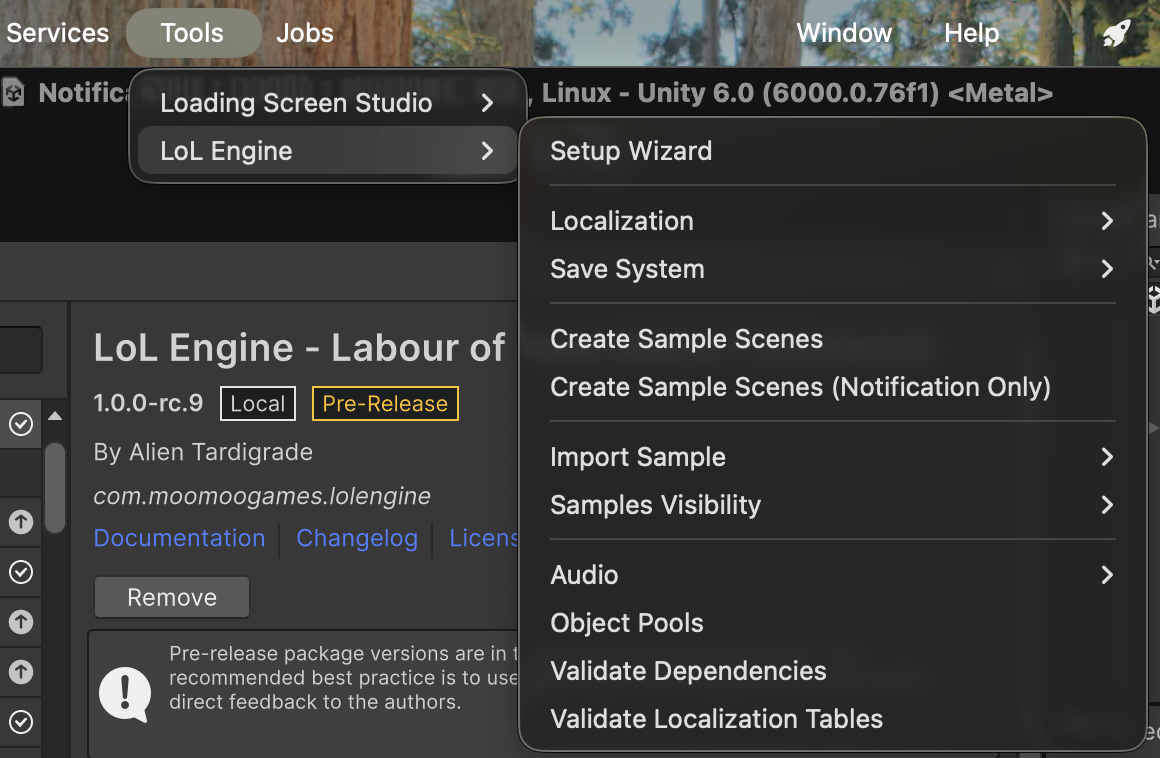
Setup and Configuration
Setup Wizard
Tools > LoL Engine > Setup Wizard
Opens the five-step Setup Wizard: choose a service profile, pick an output path, create the config assets, wire up a scene initializer, and validate the result. This is the recommended starting point for a new project. See the Setup Wizard page for the full walkthrough.
Save System
| Command | What it does |
|---|---|
| Save System > Create Default Config | Creates a default SaveConfig asset for the save/load pipeline. See Data Persistence. |
Localization
| Command | What it does |
|---|---|
| Localization > Create Localization Config | Creates a default LocalizationConfig asset. |
| Localization > Create String Table Template | Writes a starter translation-table CSV (Key,Context,<languages>) you can fill in. |
| Localization > Create Asset Folders | Creates the Resources folder layout the localization system expects (localized text, images, audio). |
| Localization > Split CSV by Language | Splits a monolithic table CSV (Key,Context,English,French,...) into per-language files (StringTable_English.csv, StringTable_French.csv, ...), each containing only Key,Value. The provider loads per-language files first and falls back to the monolithic CSV. |
See Localization for the full system, and Localization Migration for moving from the legacy API.
Validation
These commands report problems in the Console and are safe to run from a build script for CI.
| Command | What it does |
|---|---|
| Validate Dependencies | Checks that required packages, configurations, and setup are present for the engine to operate. Reports missing pieces in the Console. |
| Validate Localization Tables | Confirms that every key in each localization CSV exists in all of that file's language columns, logging an error per missing translation. Returns silently when all tables are complete. |
Audio and Addressables
These helpers prepare a project that loads audio through Addressables. They require the Addressables package and, for the mixer commands, a selected AudioMixer asset.
| Command | What it does |
|---|---|
| Audio > Apply Default Mixer Settings | Applies the engine's default settings to the AudioMixer selected in the Project window. Shows a prompt if no mixer is selected. |
| Audio > Setup Addressable Groups | Creates Addressable groups Audio_Music, Audio_SFX, Audio_UI, and Audio_Voice (LZ4, packed separately), creating the Addressable settings asset first if needed. |
| Audio > Mark Audio Assets as Addressable | Scans Assets/Audio, Assets/Sounds, and Assets/Music for AudioClips, registers each as an Addressable addressed by file name, and labels it by folder (Music / SFX / UI). |
| Audio > Create Audio Snapshot - Normal | Placeholder command — a starting point for authoring an AudioMixer snapshot for normal gameplay. It requires a selected AudioMixer and does not modify it by default; add your own snapshot logic. |
| Audio > Create Audio Snapshot - Paused | Placeholder command — a starting point for a "paused" AudioMixer snapshot (for example, ducking music and emphasizing UI). Like the Normal command, it is a stub for you to extend. |
See Audio and Resource Management for how audio loading and Addressables fit together.
Debugging Windows
| Command | What it does |
|---|---|
| Object Pools | Opens a window that lists the active object pools and their counts at runtime. See Object Pool. |
Samples (Package-Development Tools)
Game projects import the bundled samples — including pre-built demo scenes — from Package Manager > LoL Engine > Samples. The commands below are for engine development: building those scenes and toggling sample visibility before publishing. You normally won't need them in a game project.
| Command | What it does |
|---|---|
| Create Sample Scenes | Builds the demo .unity scenes under each samples folder, each fully wired with its own initializer and config. Run with samples visible. |
| Create Sample Scenes (Notification Only) | Builds just the Notification demo scene. |
| Import Sample > Deterministic RNG (Override) | Force-imports the Deterministic RNG sample when a Package Manager import is stale or partial. |
| Samples Visibility > Hide Samples (publish-ready) | Renames Samples/ to Samples~/ (the UPM hidden-folder convention) so samples are excluded from builds — the correct state for Asset Store distribution. |
| Samples Visibility > Show Samples (dev mode) | Renames Samples~/ back to Samples/ so the scenes are openable and editable in place. |
Related Docs
- Setup Wizard — the guided first-time setup window
- Getting Started — manual setup walkthrough
- Localization — the localization system the menu tools support
- Data Persistence — the save system the config creator targets
- Audio — audio playback and mixer integration
- Object Pool — the pooling system behind the Object Pools window